3x3 Eggs Controls on PC, Chromebook, iPad & Mobile
Complete 3x3 Eggs controls guide for PC, Chromebook, iPad, and mobile—including camera turning, stealing or dropping eggs, and touch quiz numpads.
Last verified
Official Controls Table (PC, Chromebook & Touch)
All core keybindings below are verified directly against the official Timestables.com 3x3 Eggs page and cross-checked against desktop and iPad gameplay footage:
| Action | Desktop PC / Mac | School Chromebook (No Mouse) | iPad / Tablet / Phone |
|---|---|---|---|
| Move | W, A, S, D |
W, A, S, D |
Left on-screen virtual joystick |
| Jump | Space bar |
Space bar |
Right on-screen Jump button |
| Steal / Hatch / Buy | E key |
E key |
On-screen Action button / tap prompt |
| Rotate Camera | Hold right mouse button + drag, or Arrow keys | Arrow keys (easiest on trackpad) | Swipe open area of screen |
| Drop Carried Egg | Click red DROP button |
Click red DROP button |
Tap red DROP button |
| Answer Math Quiz | Type digits + Enter or click Answer |
Type digits + Enter or click Answer |
Tap on-screen 0–9 keypad + Answer |
Best Camera Setup for School Chromebooks
The #1 frustration for new Chromebook players is trying to turn the camera with a two-finger trackpad right-click while running from an awakened guardian. Skip the trackpad during heists:
- Keep your left hand on
W / A / S / Dand thumb overSpace. - Keep your right hand on the Arrow keys (
LeftandRight) to swing the camera around corners as you approach a sleeping guardian. - Before pressing
Eto grab an egg, spin your camera 180 degrees so you are already facing straight back toward the Safe Zone! That single habit cuts half a second off your escape start and makes dodging fast guardians like the Lava Dragon or Cloud Griffin much easier.
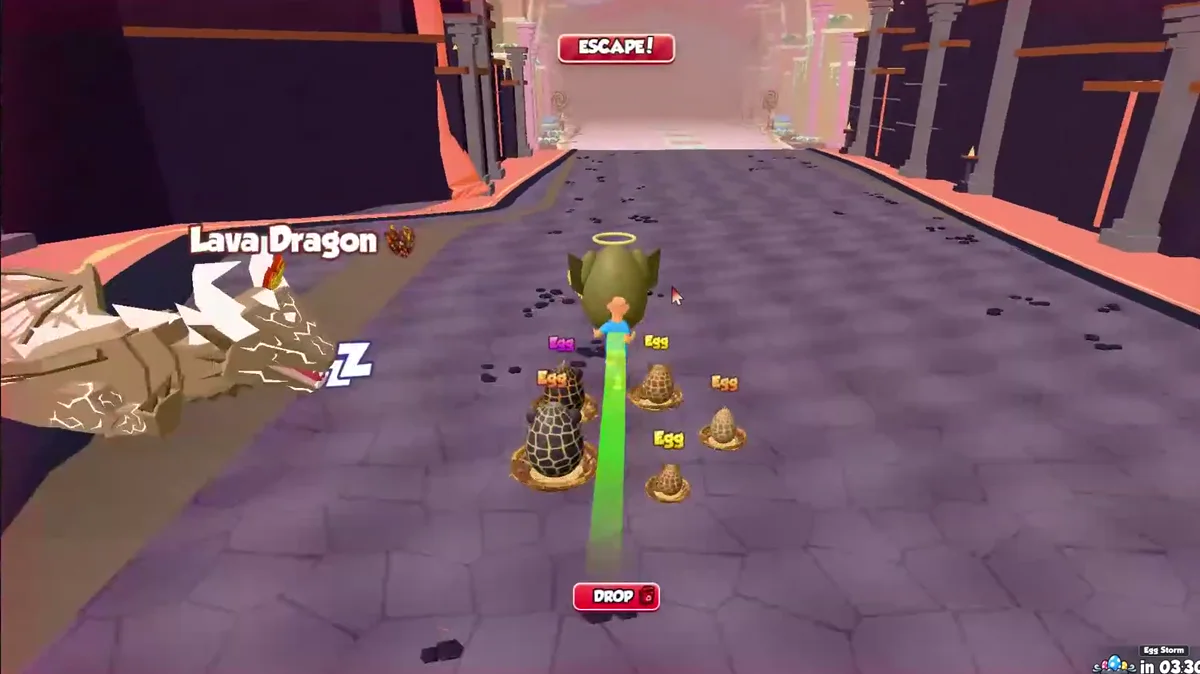
Pre-aiming your camera back toward the exit before grabbing an egg gives you an instant head start once the ESCAPE! alert triggers (pieGamer at 3:40).
Navigating Menus and HUD Buttons
In addition to movement controls, both desktop and tablet layouts surround the 3D viewport with quick-access icons:
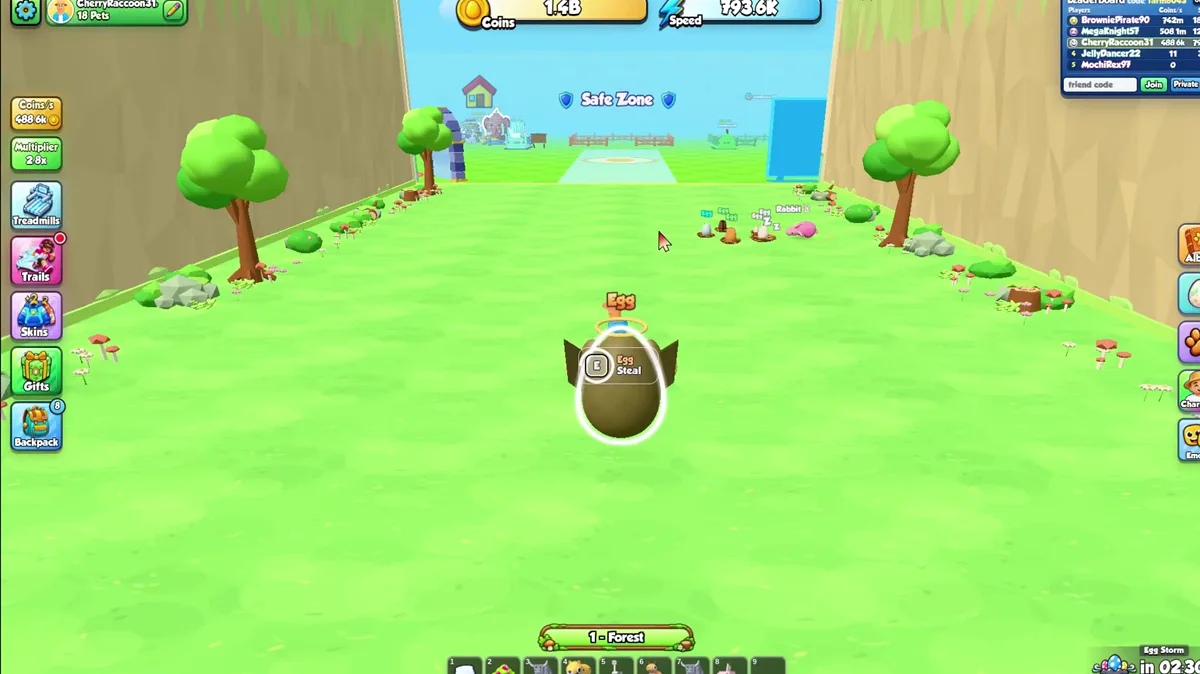
- Top Center: Your live Coins counter (gold coin badge) and Speed stat (blue lightning bolt badge).
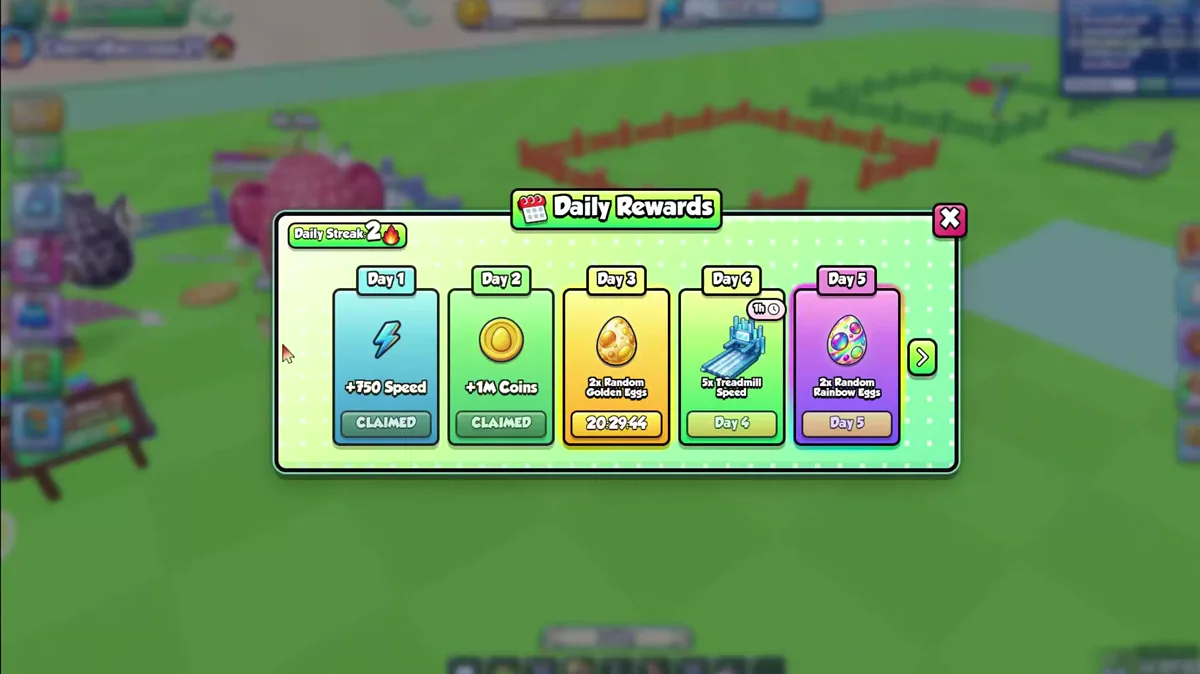
- Left Sidebar: Quick buttons for Treadmills, Trails, Character / Skins customization, Gifts / Daily Rewards, and Backpack.
- Top Right: The Leaderboard panel (or Rooms button on tablet) where you enter friend codes or launch a Private Room.
- Bottom Bar: Current biome badge with visual biome shortcuts and the Egg Storm countdown clock in the bottom-right corner.
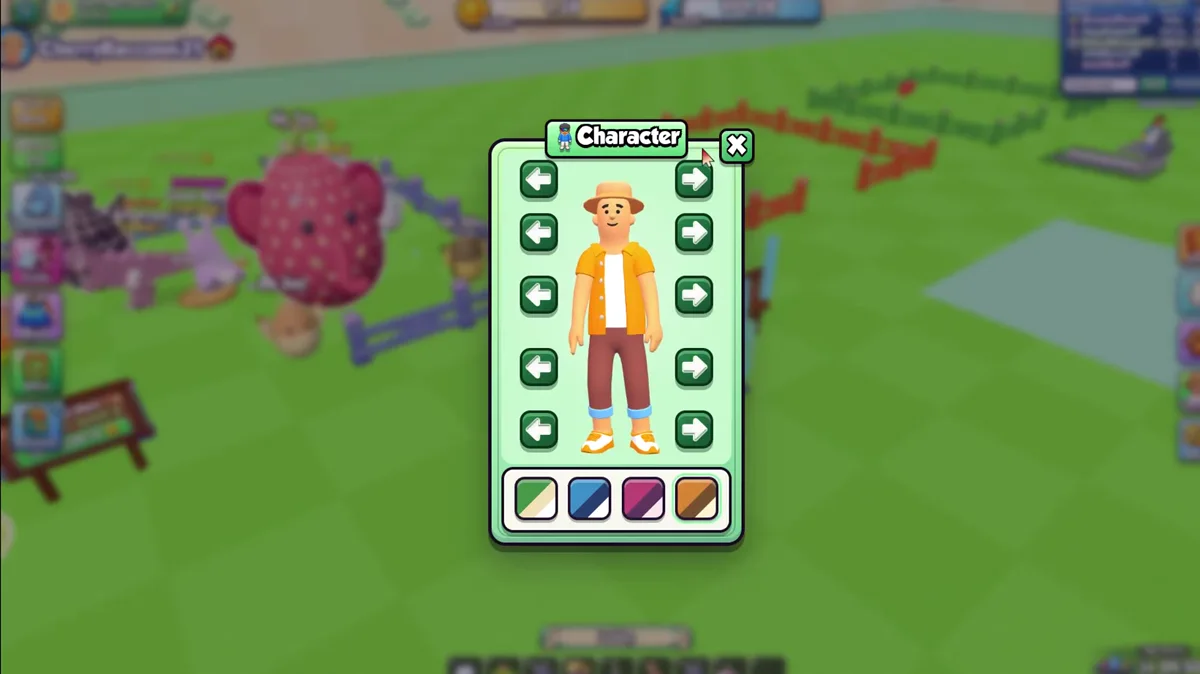
Opening the Character menu from the sidebar lets you swap outfits and colors between runs (pieGamer at 2:20).
Playing on iPad and Mobile Devices
Tablet gameplay footage confirms that the mobile interface is clean and kid-friendly:
- Hold the purple circular joystick in the bottom-left to sprint smoothly without lifting your thumb.
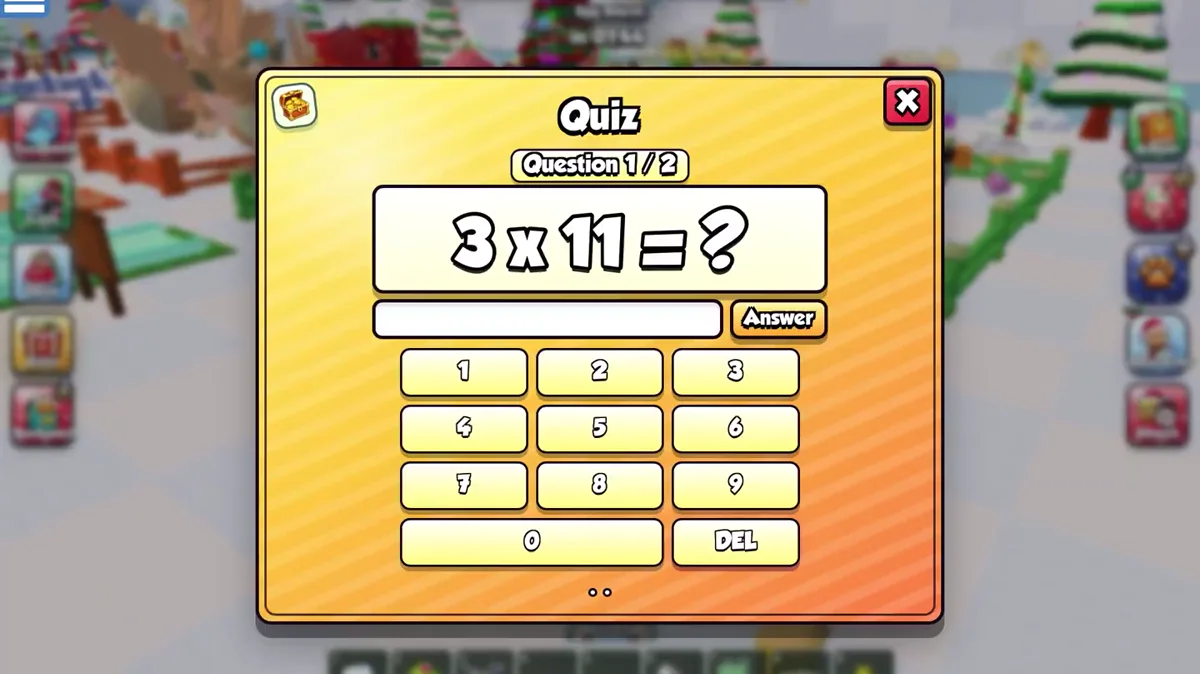
- When you trigger an egg hatch or pen upgrade, 3x3 Eggs automatically opens a custom on-screen 0–9 number pad with a
DELkey andAnswerbutton so the iPad's full QWERTY keyboard does not cover the math problem. - Use landscape orientation whenever possible so the top Coins/Speed HUD and bottom biome icons stay spacious and readable.
- Notice one helpful layout difference between screens: on desktop and Chromebook, the Egg Storm countdown clock sits in the bottom-right corner and the Leaderboard / Friend code panel sits top-right; on iPads, the Egg Storm clock shifts directly underneath the top-center Coins and Speed counters, and multiplayer lobbies open via the top-right Rooms button.
Fixing Input Focus Issues on Desktop & Chromebook
If pressing WASD or Space suddenly scrolls the webpage instead of moving your avatar, click once inside the 3D canvas or toggle the Fullscreen button directly underneath the game window on Timestables.com. Entering Fullscreen locks keyboard focus to the game, prevents accidental tab switches, and makes pressing E beside a sleeping guardian much more responsive when your speed increases in deeper biomes.
Ready to Practice Your Escape?
Once your controls feel natural, head to How to Play 3x3 Eggs for early upgrade priorities, check our Treadmills & Speed Trails Guide to boost movement speed, or warm up your typing accuracy on our Times-Tables Hatch Speed Drill.
Reference Sources & Attribution
- Official keyboard, mouse, and tablet controls verified on Timestables.com — 3x3 Eggs (2026-11-25).
- Gameplay stills credited to Arjun Siddharth (
0:31) and pieGamer (2:20,3:40).
Frequently Asked Questions
How do I turn the camera in 3x3 Eggs on a Chromebook without a mouse?
Use the Left and Right Arrow keys on your keyboard to rotate the camera smoothly while moving with W/A/S/D. You do not need to right-click-drag on a Chromebook trackpad.
Can you play 3x3 Eggs on an iPad or phone?
Yes. Timestables.com officially supports tablets and phones with an on-screen left movement joystick, a right Jump button, tap-to-steal action prompts, and a built-in touch number pad for multiplication quizzes.
What does the red DROP button do?
When you are carrying a stolen egg and a giant guardian wakes up right behind you, clicking or tapping the red DROP button at the bottom of the screen drops the egg immediately.
Keep Exploring